RFQ & Order Workflows
This document describes the Request-for-Quote (RFQ), Cancel and Order flows implemented by the Cadify plugin, including ERP-related behaviour.
Summary
In Cadify, products can be either ERP-managed or standard (non-ERP), but both use the same project-based RFQ flow:
- From any product page the user can:
- create a project with a one-click RFQ, or
- add the product as an item to a new or existing project and request a quote later.
- For ERP-managed products the system automatically detects ERP items and adjusts the UI:
- Cancel and Order buttons are hidden.
- RFQ still works and is processed on the server / ERP side in the background.
- Status and history are driven by ERP webhooks and are visible on the project page and in the project list.
- For non-ERP products:
- RFQ requests appear in the admin area, where the store owner can accept or cancel them.
- After acceptance, the customer sees that the quote is approved and can either place an order based on the quote or cancel the request.
End-to-end RFQ lifecycle (non-ERP projects)
This section describes the basic flow for standard (non-ERP) projects: the customer sends a quote request, the quote is accepted or cancelled by the store admin, and then the customer can order or cancel.
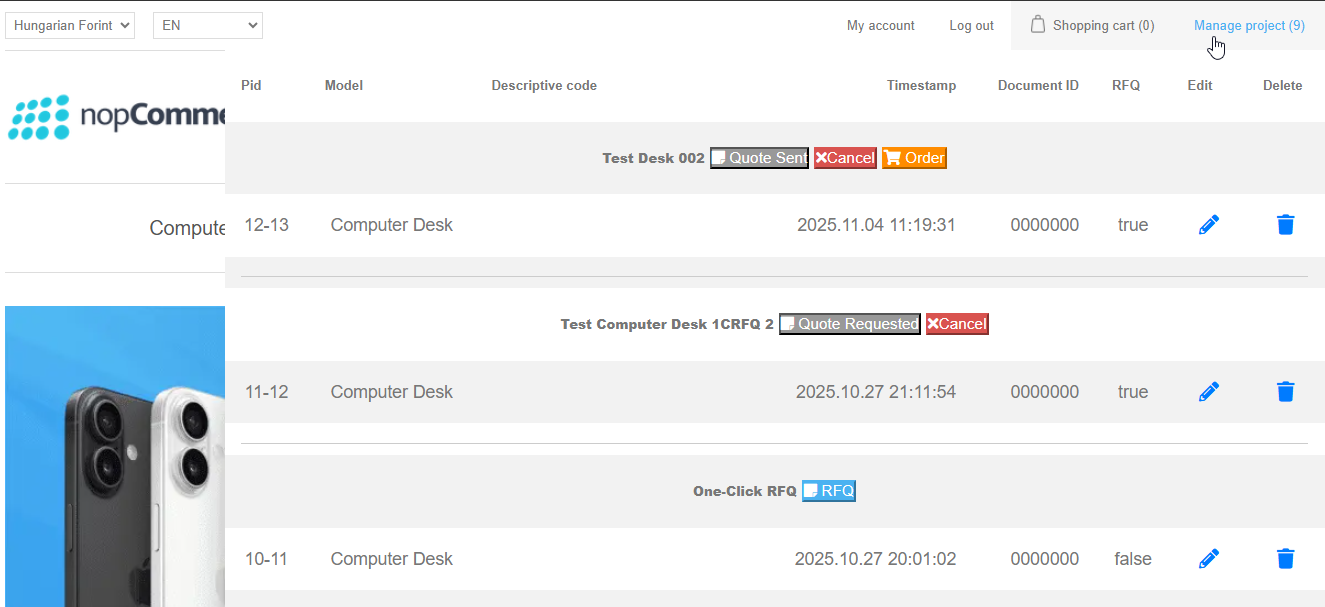
1. Customer sends a quote request
From a project page or the project list:
- The customer clicks RFQ on the project.
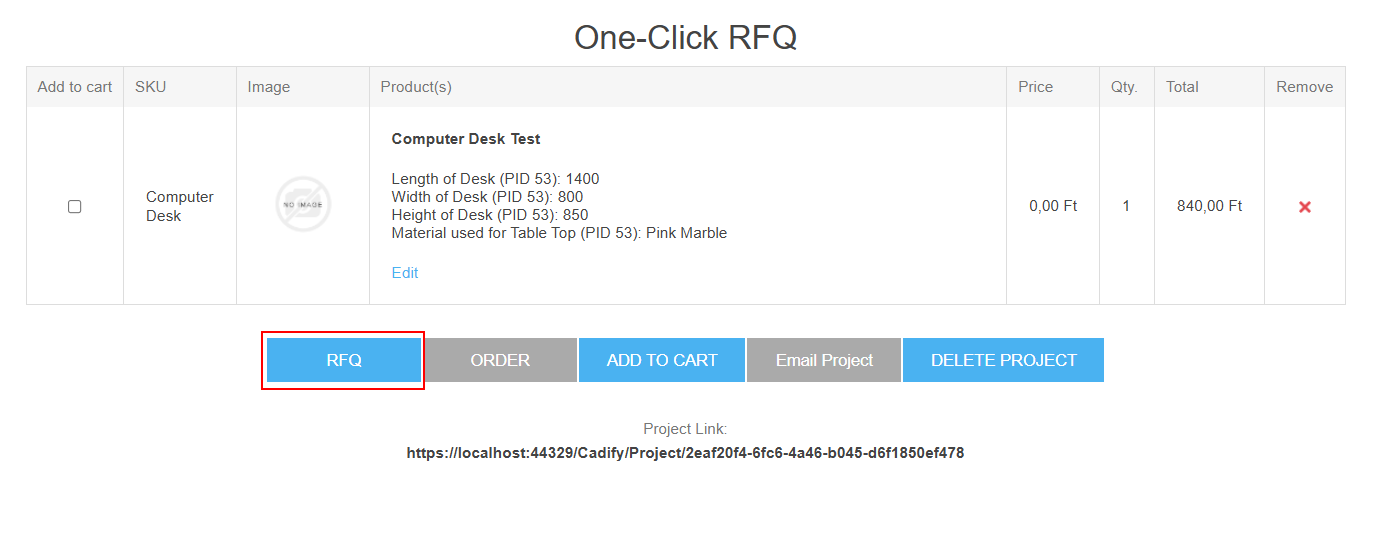
- The client sends a Quote Request.
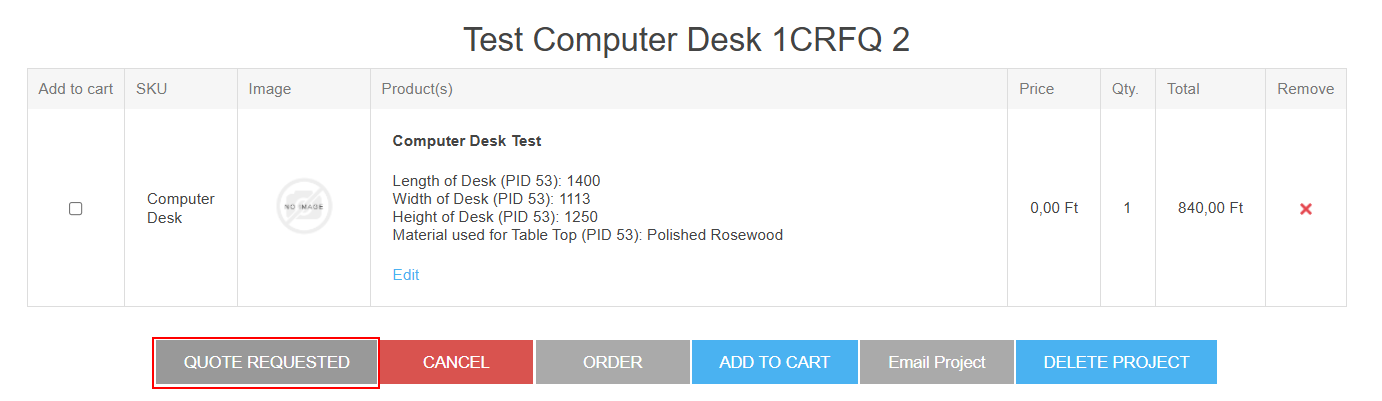
- For non-ERP projects, client scripts:
- Update the RFQ button caption (
"Quote in Progress"→"Quote Requested"). - Adjust the appearance (e.g. disabled state / CSS class) to show that the request is pending.
- Project state flag such as
IsQuoteRequestedare updated server-side. - Project history records the RFQ action.
2. Admin reviews and accepts or cancels the RFQ
In the admin area:
- The store owner sees incoming RFQ requests for customer projects.
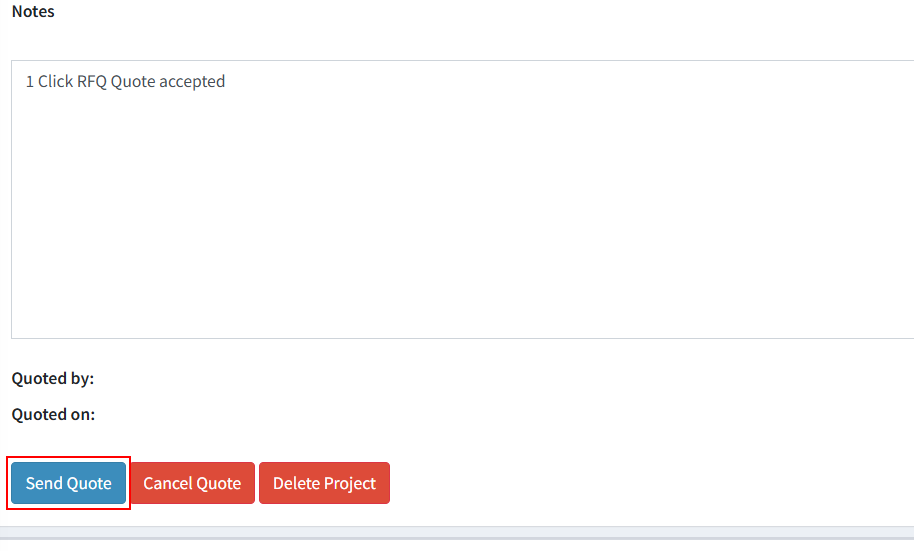
- For each RFQ, the admin can:
- Accept: provide pricing / quote and mark the RFQ as approved.
- Cancel: decline the request.
Server-side outcomes:
- On accept:
- The project is marked as quoted (e.g.
IsQuoted = true). - Quote details are stored with the project.
- Project history is updated with a “quote accepted” entry.
- On cancel:
- Quote request flags are reset or updated accordingly (e.g.
IsQuoteRequested = false). - Project history records the cancellation.
These state changes are exposed through GET /Project/GetProjectRecord and GET /Project/GetProjectHistory and are picked up by client polling.
3. Customer sees quote result
On the customer side (project page and list):
- Client JS periodically polls:
GET /Project/GetProjectRecord?projectGuid={guid}-> Reads the project stateGET /Project/GetProjectHistory?projectGuid={guid}-> Reads the project history- Based on the returned flags:
- If the quote is accepted, the UI shows a quoted state and the Order button becomes available.
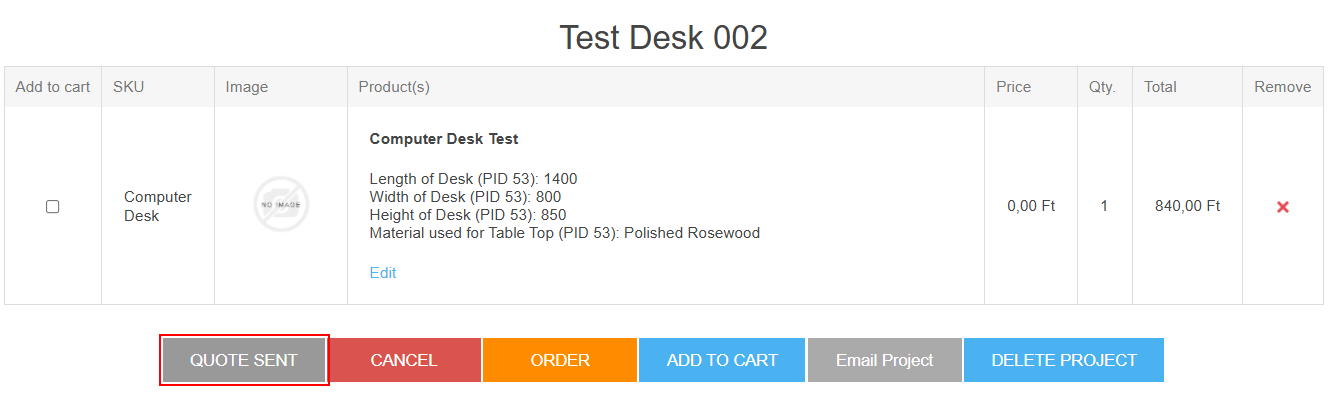
- If the quote is cancelled, the project reverts to a non-quoted state and the customer can send a new RFQ if desired.
For non-ERP projects the RFQ button’s caption and styling are updated by the client to reflect the latest status.
4. Customer orders or cancels
Once a quote is accepted (non-ERP projects only):
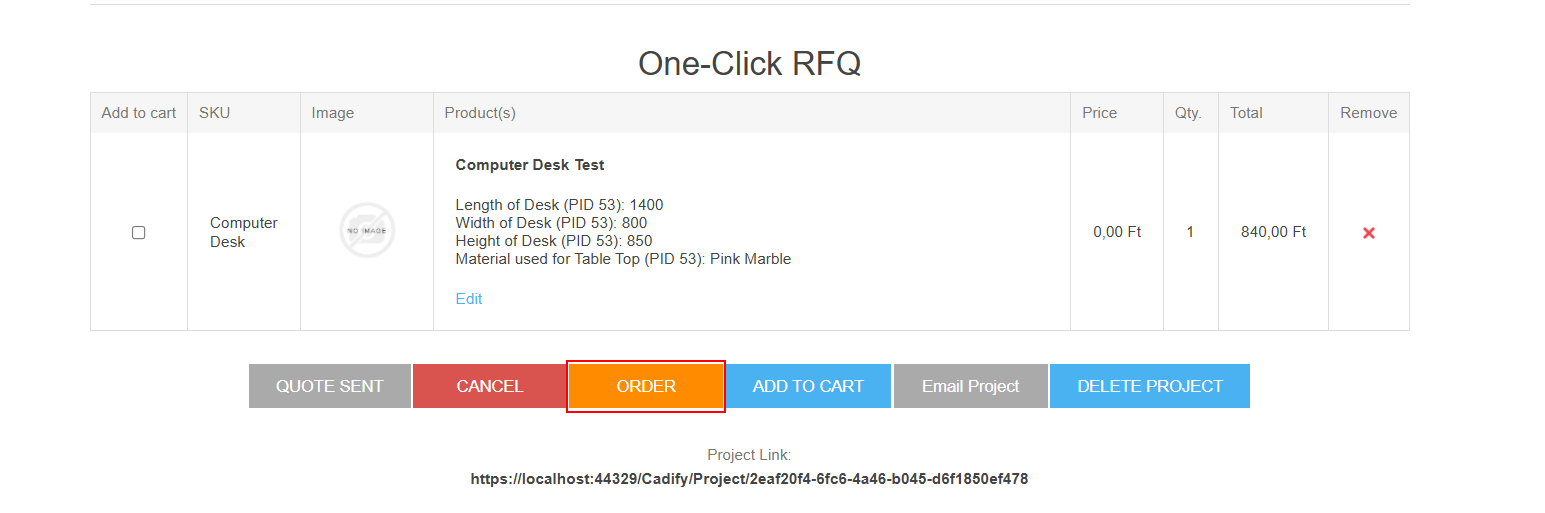
- Order path:
- Customer clicks Order on the project.
- Client sends
POST /Project/CreateOrderwith the project GUID. - Server creates an order based on the project items and quote.
-
Quote-related flags are reset after order creation as appropriate, and project history records the order event.
-
Cancel path:
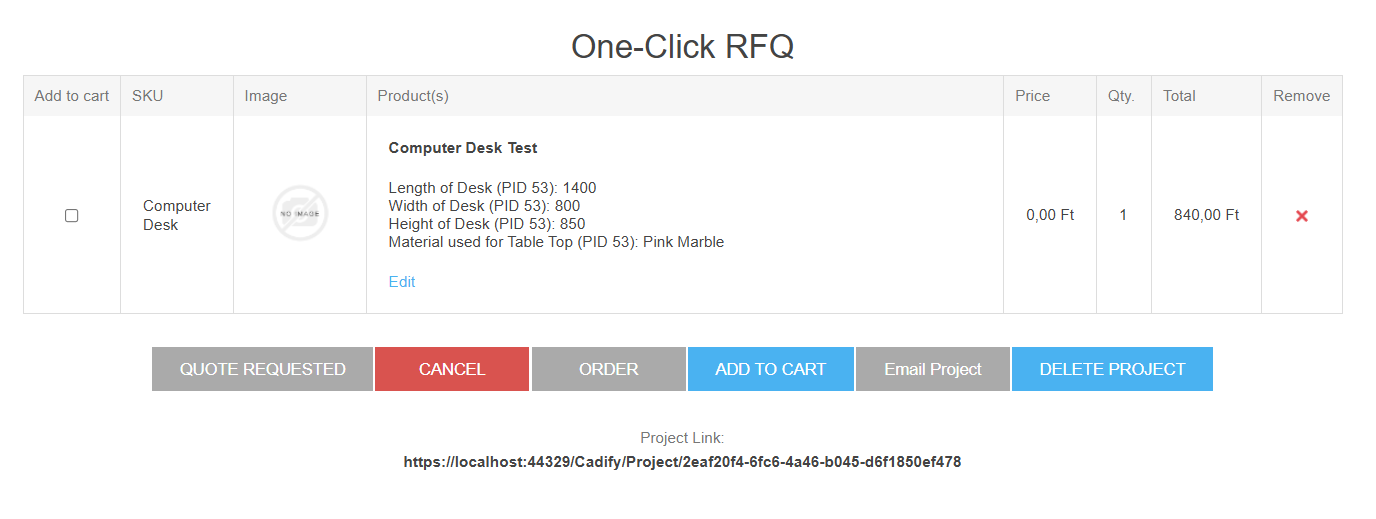
- Customer clicks Cancel on the project.
- Client sends Reset Quote Request to
POST /Project/GetProject. - Server resets
IsQuoteRequested(and related flags), effectively cancelling the RFQ. - Project history is updated to reflect the cancellation.
- The customer can submit a new RFQ if needed.
This is the canonical user journey for non-ERP projects:
RFQ requested → Admin accepts / cancels → Customer orders or cancels.
ERP projects follow the same server-side flow conceptually, but the UI is restricted (see the next section).
ERP-aware behavior
When a project contains any product with an ERP id (detected from the product’s ErpId):
- Cancel and Order controls:
- The Cancel and Order buttons are not rendered in both the DataTable and the project page.
-
If has ERP ID these controls are omitted entirely.
-
RFQ button:
- The RFQ action still sends the server request exactly as before.
-
However, the RFQ button’s client visual state (text, color, enabled/disabled) is intentionally not changed by client scripting for ERP projects.
-
Rationale:
- ERP-managed products must keep RFQ UI stable because the ERP system owns the status.
- The server still processes RFQ requests and publishes
ProjectQuotedEvent, sends ERP webhooks, and writes project history — but the client UI does not override ERP-driven appearance.
Views — what they render now
- Project detail page (
Project.cshtml) Project's page belongs to the specific project. - Client JS polls
GET /Project/GetProjectRecordand updates state — but the poller will not change RFQ visuals if the product has ERP ID. -
Client JS polls
GET /Project/GetProjectHistoryupdates the project state infomrations in a newsfeed. -
Project list DataTable (
_ProjectListDataTable.cshtml) JS Table which make always available of the basic project functionalities. - Client JS polls
GET /Project/GetProjectRecordand updates state — but the poller will not change RFQ visuals if the product has ERP ID.